Getting StartedAdmin users and any role required to use 2FAtwo-factor-authentication
Complete Two-Factor Verification
Enroll in two-factor authentication and confirm the sign-in challenge flow before you rely on it.
Before you start
Use this flow from Settings before you sign out of a fresh account.
- You can already sign in with your email and password.
- Your authenticator app or verification device is available.
Enroll in two-factor authentication
- 1
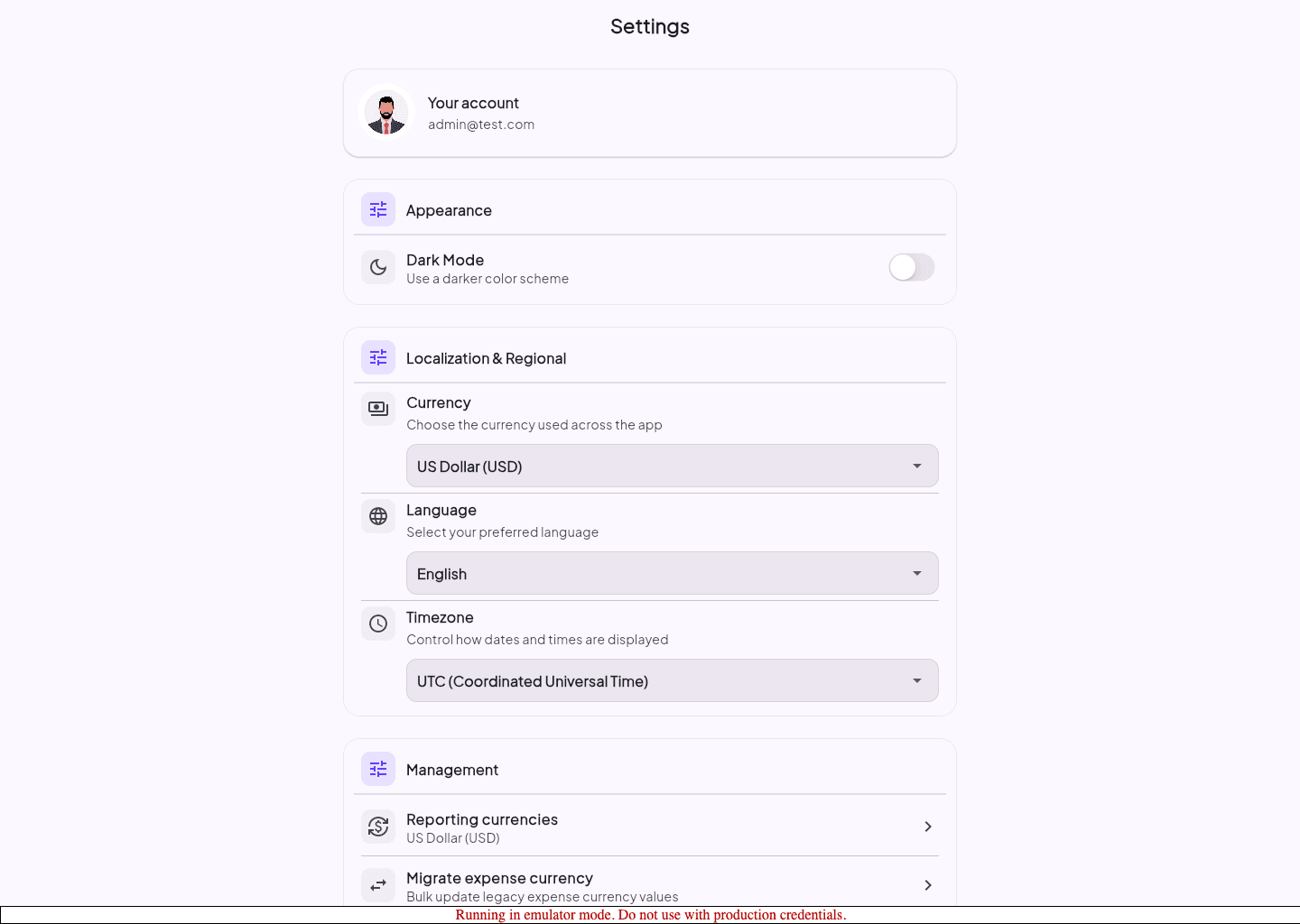
Open Settings after you sign in.
- 2
Find the Two-Factor Authentication section.
- 3
Start the enrollment wizard.
- 4
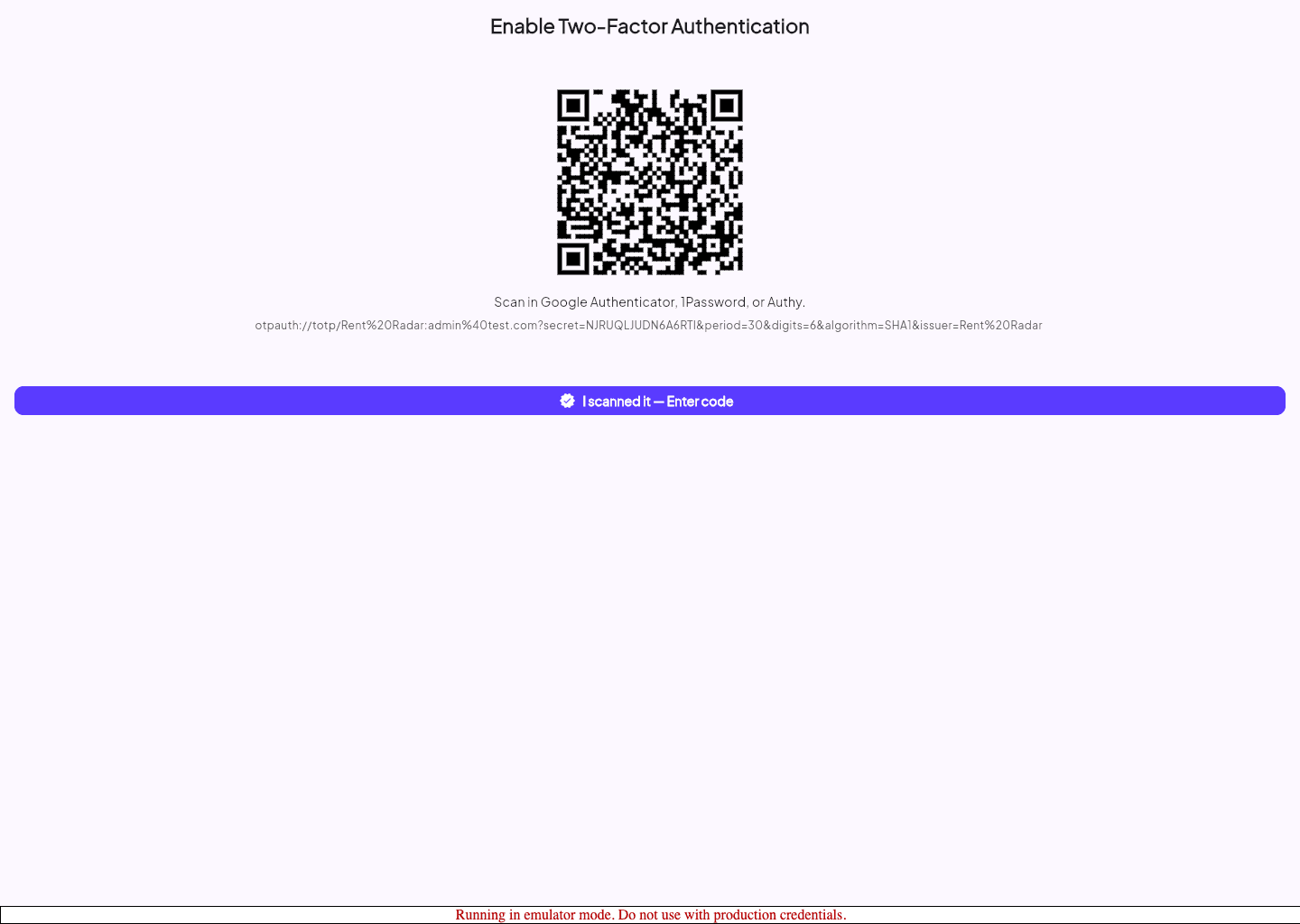
Scan the QR code or copy the setup key into your authenticator app.
- 5
Enter the six-digit code and save your recovery codes.
Verify the sign-in challenge
- 2
Sign out after enrollment completes.
- 3
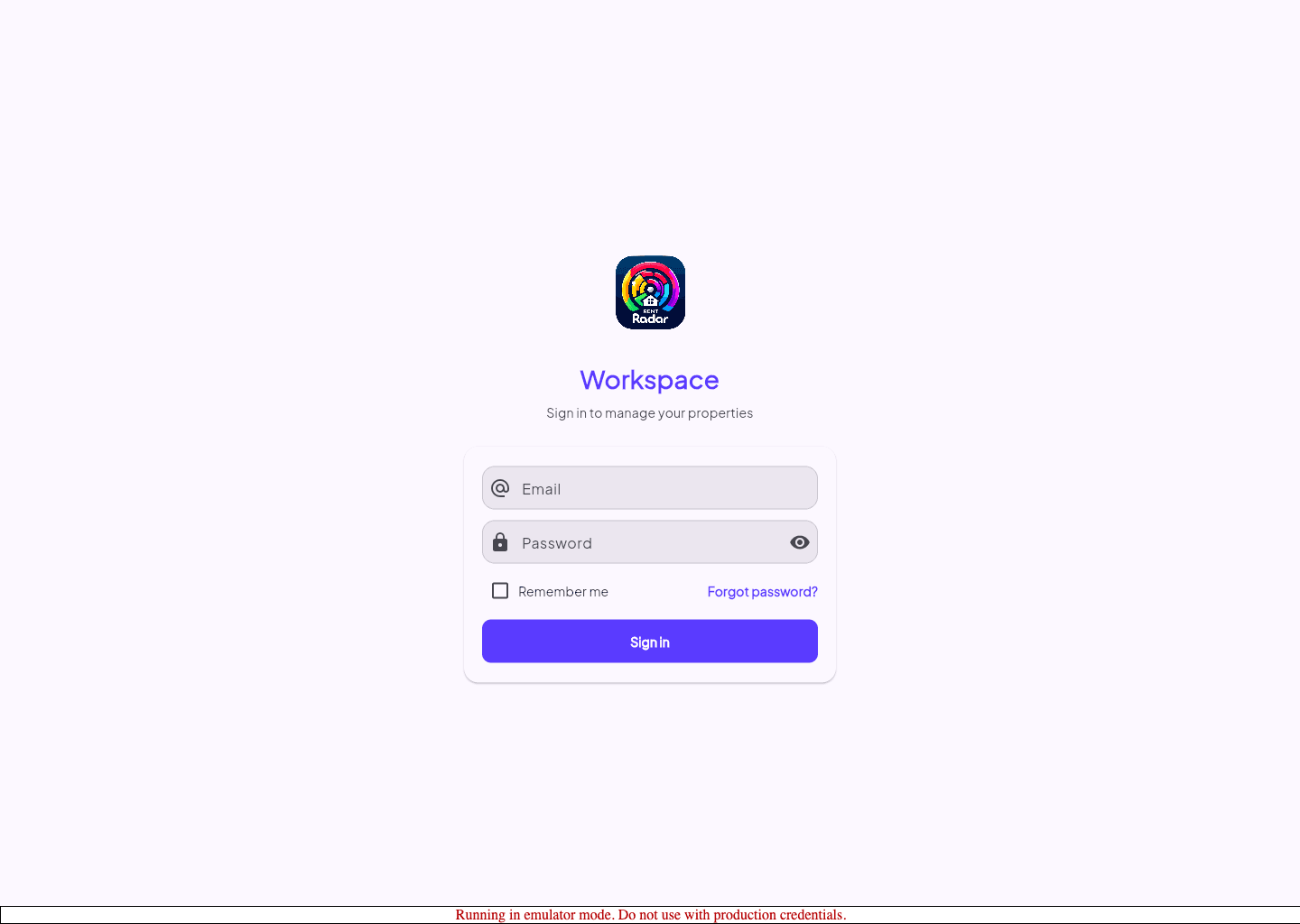
Sign back in with your email and password.
- 4
Enter the six-digit code when the verification page appears.
- 5
Submit the challenge to continue into the app.
Guided screenshots
Reference views for this workflow.