Getting StartedAll signed-in rolesauthentication
Sign In and Reset Your Password
Use the Rent Radar sign-in page and recover access if your password stops working.
Before you start
Start here whenever you open the app from a new browser session.
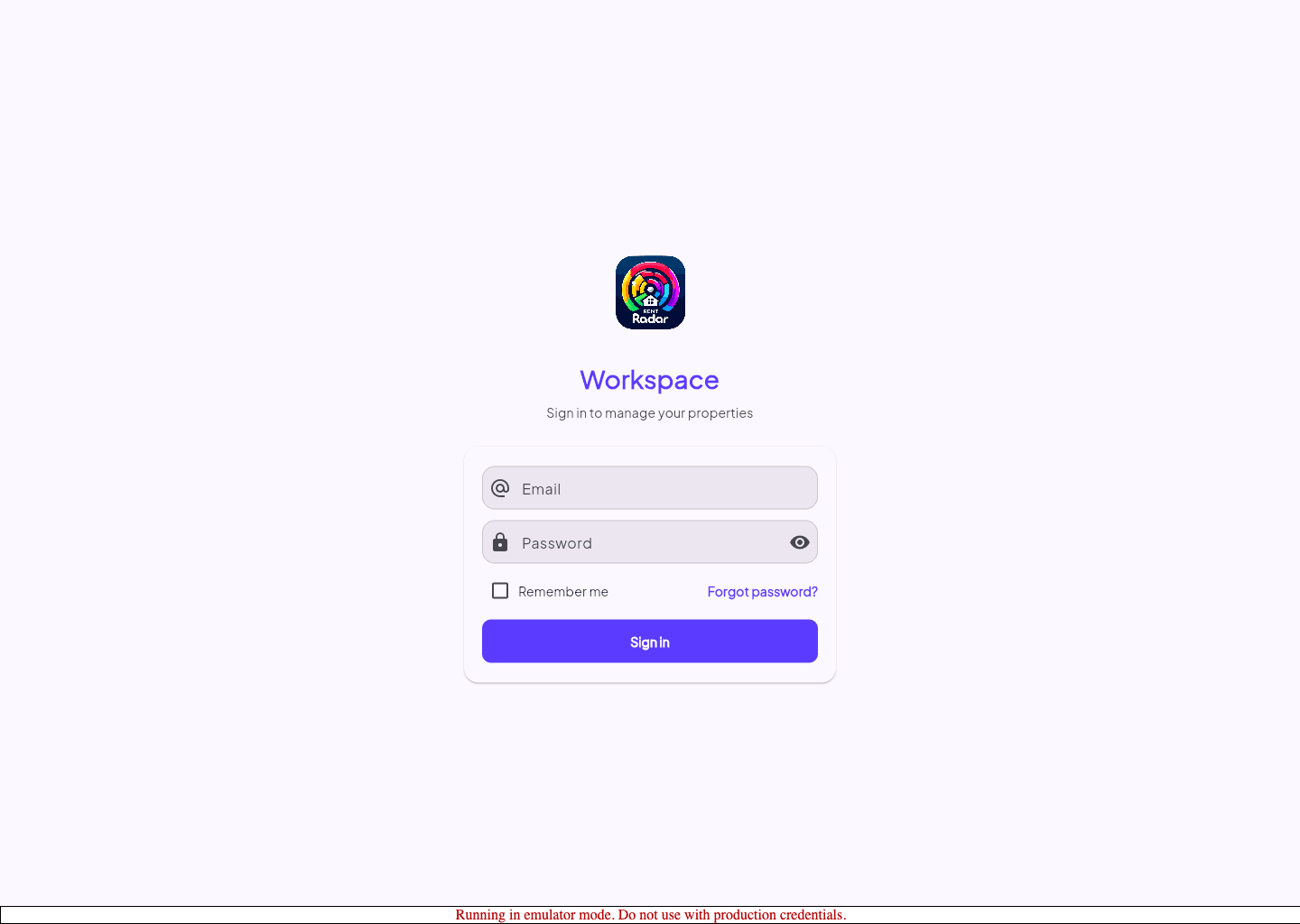
Sign in
- 1
Open the Rent Radar sign-in page.
- 2
Enter the email address tied to your account.
- 3
Enter your password.
- 4
Select Sign In and wait for the property selector or dashboard.
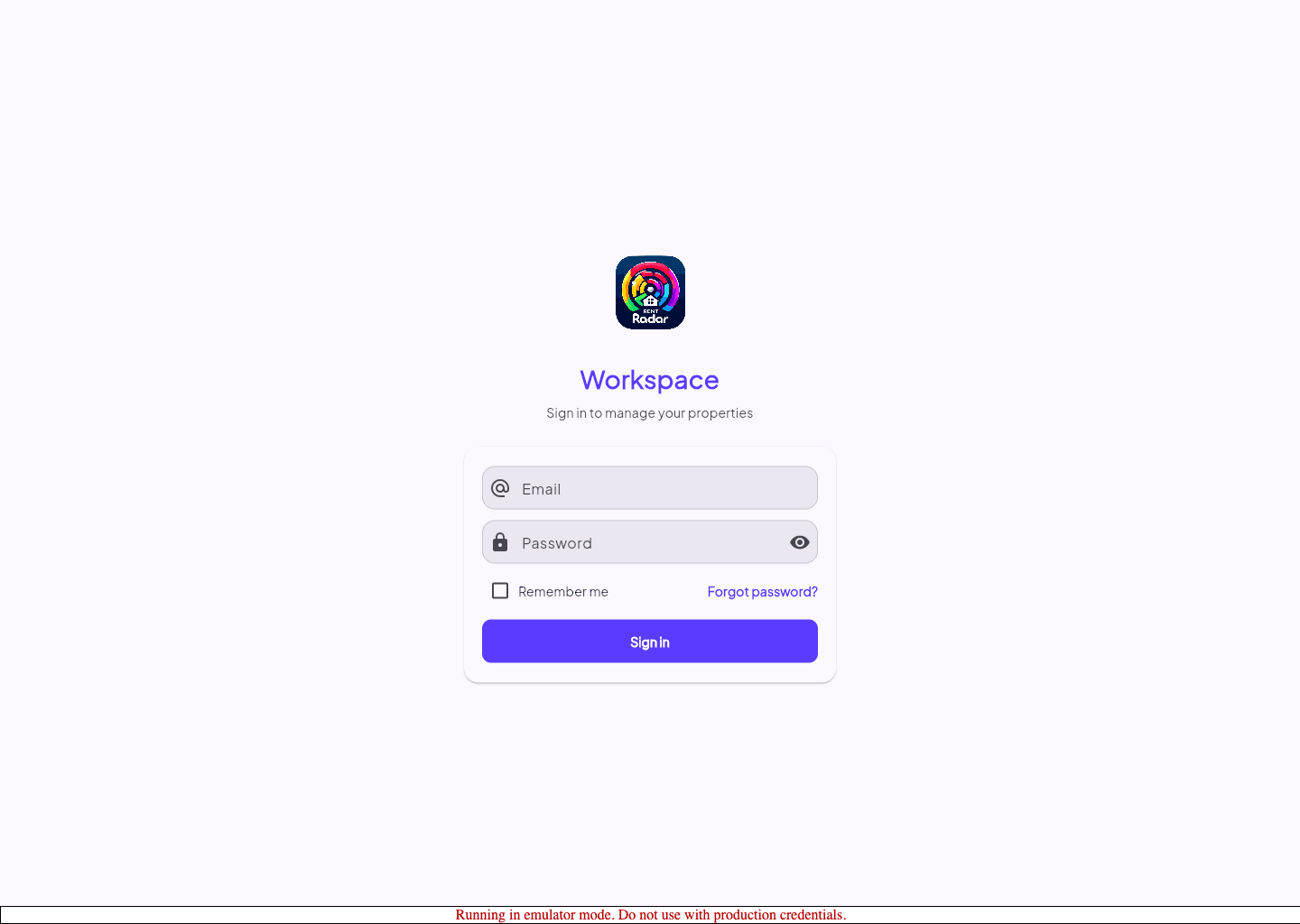
Reset your password
- 2
Select Forgot password from the sign-in form.
- 3
Enter the same email address used for your account.
- 4
Submit the reset request and open the email you receive.
- 5
Choose a new password, then return to the sign-in page.
If access still fails
- Confirm you are using the email address originally invited into Rent Radar.
- Check whether your browser autofilled an older password.
- Move to the troubleshooting guide if the app opens but redirects away from the page you need.
Guided screenshots
Reference views for this workflow.