Getting StartedAll property-scoped rolesproperty-selection
Select a Property and Open the Dashboard
Pick the active buyer and property scope so operations pages load with the right data.
Before you start
Most operational pages rely on the selected property. If the property is missing, the app sends you back here.
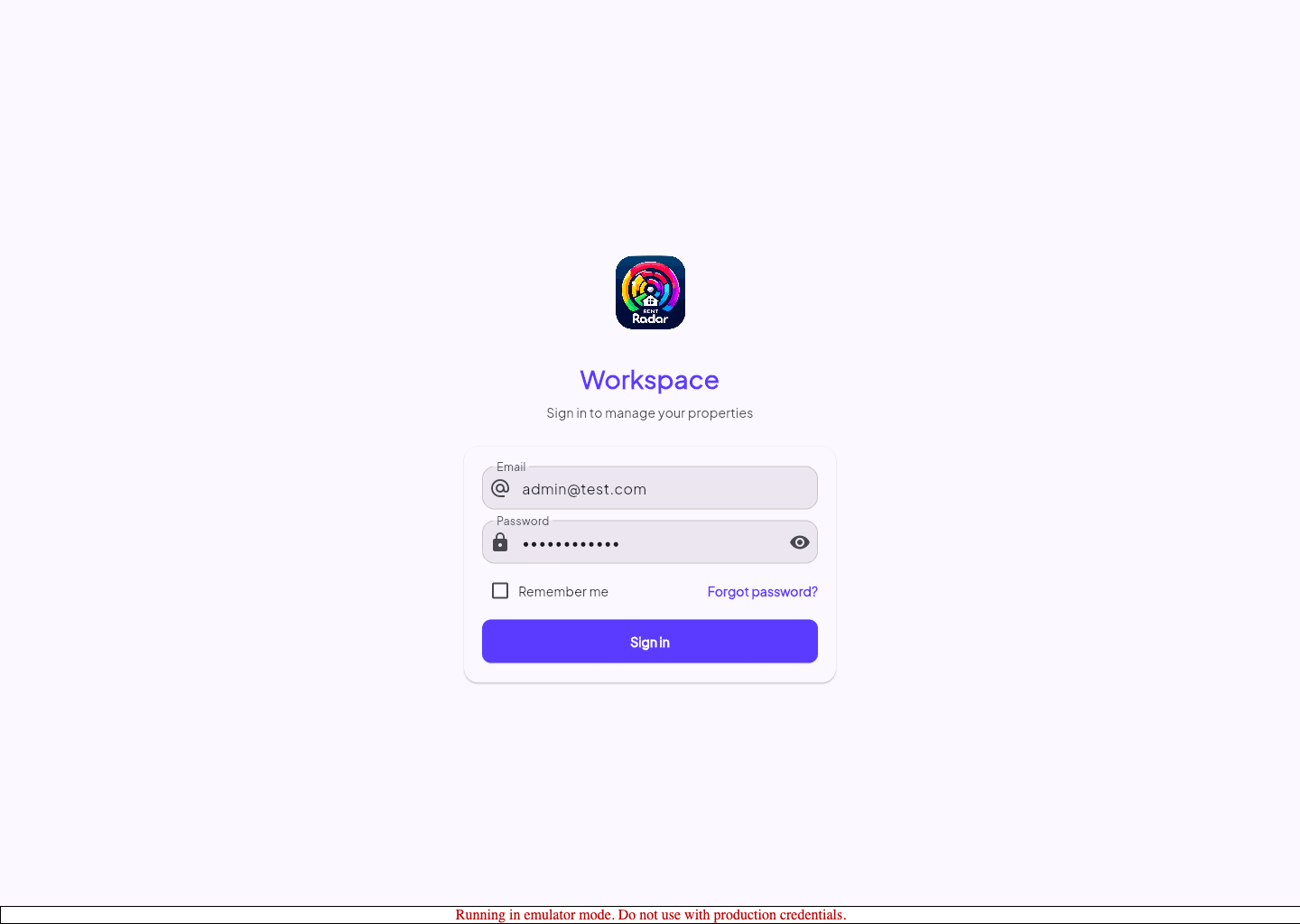
- You can sign in successfully.
- At least one buyer and property are assigned to your account.
Select the active property
- 1
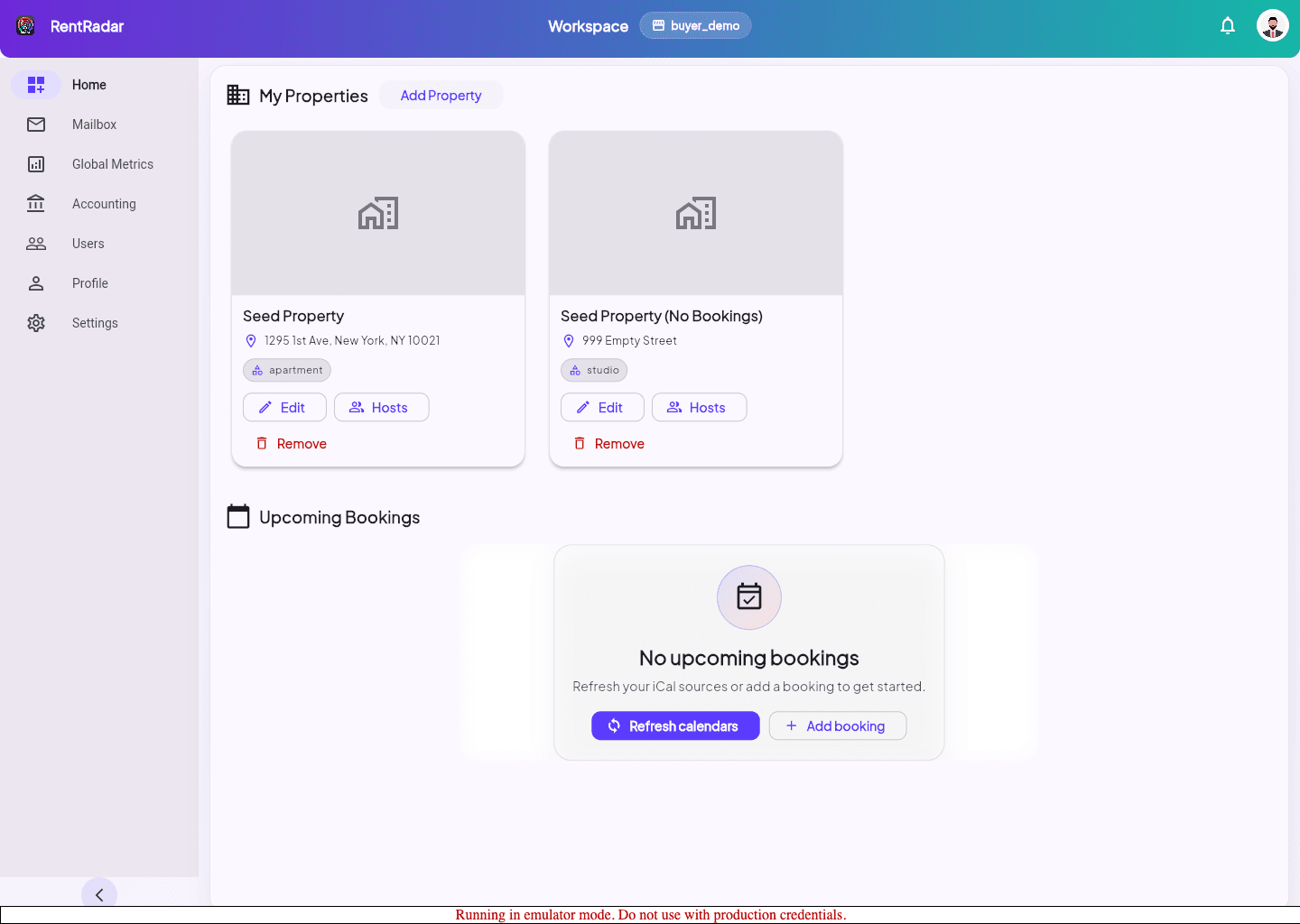
Wait for the property selection page after sign-in.
- 2
Review the available properties for the current buyer.
- 3
Select the property you want to work in.
- 4
Confirm the property badge appears in the app header.
- 5
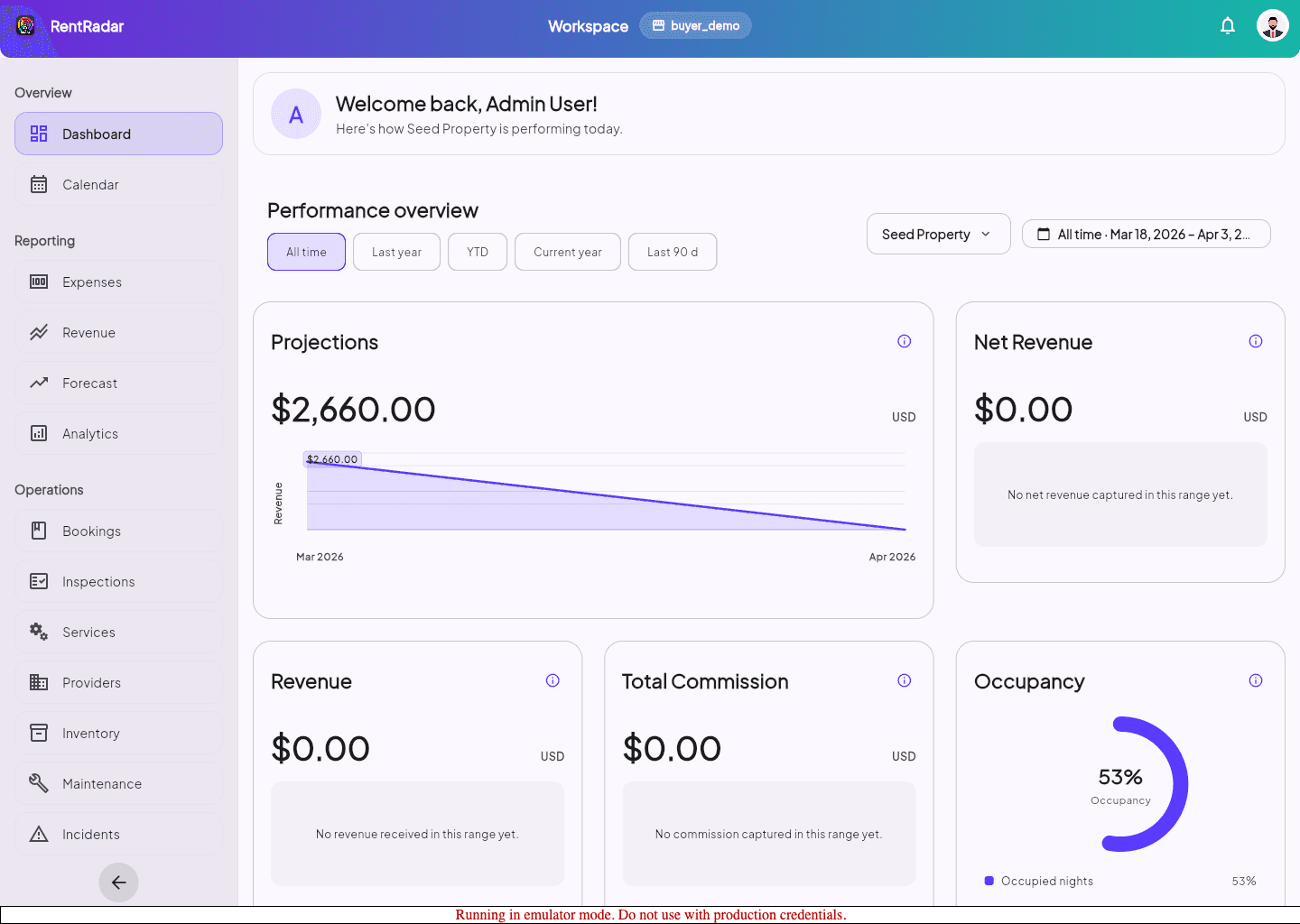
Open Dashboard or the workflow you need next.
If the selector appears again later
- Reopen the selector and confirm a property, not only a buyer, is selected.
- Return to the page that redirected you once the property is saved.
- Check the header badge before assuming the wrong data is loaded.
Guided screenshots
Reference views for this workflow.